 Lirix
Lirix Dual boot Lirix with Windows
Keep Windows and add Lirix next to it.
"Dual boot" means Windows and Lirix both live on the same computer. Each time the PC starts, a menu lets you pick which one to use. Your Windows files stay where they are.
Want to practise first? You can rehearse all of this in a virtual machine.
Before you start (in Windows)
- Back up first. Copy your important files (photos, documents) to a USB drive or to the cloud. Resizing a disk is usually safe, but a power cut at the wrong moment can lose data.
- Turn off Fast Startup. Open Control Panel → Power Options → "Choose what the power buttons do". Click "Change settings that are currently unavailable", untick "Turn on fast startup" and click Save changes. Windows must be fully shut down (not hibernated) so Lirix can safely resize its drive.
- BitLocker / Device encryption. If your drive is encrypted, first save your recovery key (sign in at aka.ms/myrecoverykey, or print it from Control Panel → BitLocker). Then choose Suspend protection there. The installer can't shrink an encrypted drive.
- Make free space (recommended). Open Disk Management (right-click Start). Right-click the C: drive, pick Shrink Volume, and free at least 30 GB (50 GB or more is comfortable). Leave the new space "Unallocated". Don't format it. Windows does this step most safely. Or skip this step and let the Lirix installer shrink Windows for you.
- Start from the Lirix USB stick. Restart and open the boot menu (often F12, F11, F9, Esc or F8, depending on the brand). Choose the USB stick. Pick the UEFI entry if two are shown. Secure Boot can stay on.
Installing
- Choose Install Lirix Desktop. On the Partitions page, pick Install alongside. Lirix sits next to Windows. If you made free space, it uses that space. Otherwise, drag the divider to choose how much to take from Windows.
- Don't pick Erase disk unless you want Windows gone. It deletes everything.
- "Replace a partition" and "Manual partitioning" are for advanced users.
- Finish the installer and restart. Remove the USB stick when asked.
Lirix Server: at "Partition disks" choose Guided - use the largest continuous free space, or Manual. Don't choose "use entire disk".
Picking Windows or Lirix
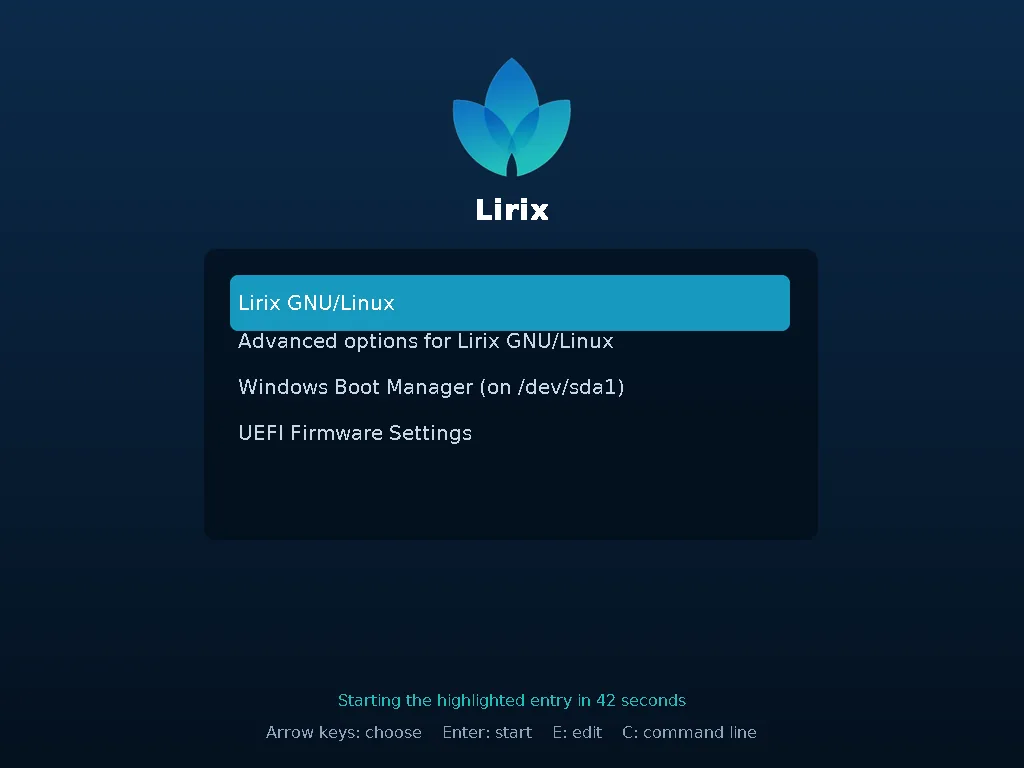
- When the PC starts, the Lirix boot menu appears for a few seconds. Use the arrow keys to pick Lirix or Windows Boot Manager and press Enter. If you do nothing, Lirix starts.
- If the PC goes straight to Windows, open the firmware setup (often F2 or Del while it starts). Under "Boot order", move lirix above "Windows Boot Manager".
- If Windows is missing from the menu, open a terminal in Lirix and run
sudo update-grub. Windows should appear the next time you restart.
Problems and good to know
- The clock is wrong after switching
Windows and Linux keep time differently. In Lirix, run
sudo timedatectl set-local-rtc 1to fix it.- "Install alongside" is missing
The Windows drive is encrypted, Fast Startup or hibernation is still on, or the disk is the old MBR type and already has 4 partitions. Fix the cause, or make free space in Windows (step 4).
- No disks found (Intel RST or RAID mode)
Some laptops use "RAID/RST" instead of "AHCI". Don't just flip the firmware setting, because then Windows won't start. First look up "switch RST to AHCI without reinstalling Windows" for your laptop model. Usually that means starting Windows once in Safe Mode after the change.
- Windows asks for the BitLocker recovery key
Type the key you saved in step 3. This can happen once after the boot order changes.
- Windows updates
They sometimes put Windows first in the boot order again. Fix it in the firmware setup as above.