 Lirix
Lirix Install guide
From download to desktop, one step at a time.
Before you start: back up your important files. Installing an operating system changes your disk. Check your download first, too.
1. Make a Lirix USB stick
You need a USB stick of 8 GB or more. Everything on it will be erased. Pick one of these free tools:
Rufus (Windows)
- Download Rufus from rufus.ie and open it.
- Plug in the USB stick and choose it under Device.
- Click SELECT and pick the Lirix ISO file. Leave the other settings as they are.
- Click START. If Rufus asks how to write the image, keep the recommended ISO Image mode. If the stick won't start later, make it again and choose DD Image mode.
- Wait until the bar says READY, then close Rufus.
balenaEtcher (Windows, Mac, Linux)
- Download balenaEtcher from etcher.balena.io and open it.
- Click Flash from file and pick the Lirix ISO.
- Click Select target and pick your USB stick. Check carefully that it's the right drive.
- Click Flash! and wait until it says the flash is complete.
Ventoy (keep several ISOs on one stick)
- Download Ventoy from ventoy.net and install it onto the USB stick (this erases the stick once).
- Copy the Lirix ISO onto the stick like a normal file.
- When you start from the stick, Ventoy shows a list. Pick Lirix.
With Secure Boot on, Ventoy asks you to approve its key the first time. Follow the instructions on Ventoy's website, or use Rufus or balenaEtcher instead.
2. Start your PC from the USB stick
- Plug in the stick and restart the computer.
- Right as it starts, tap the boot menu key a few times. It is often F12, F11, F9, Esc or F8, depending on the brand.
- Pick the USB stick. If it's listed twice, choose the one that says UEFI.
- The Lirix boot menu appears. You can leave Secure Boot on.
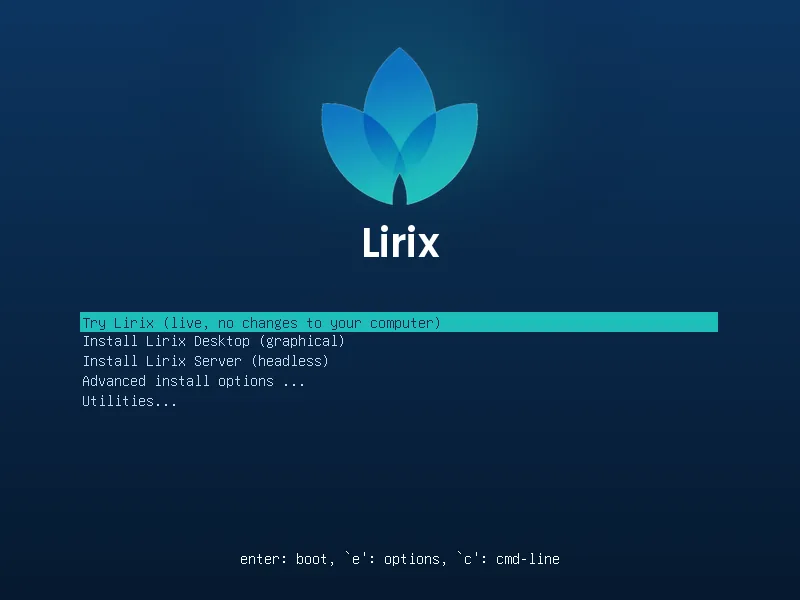
3. Try Lirix
Choose Try Lirix. Lirix runs from the USB stick and nothing on your computer changes. Look around, connect to Wi-Fi, open Brave. If anything asks for a password while trying Lirix, the user is user and the password is live.
4. Install Lirix
Double-click Install Lirix on the desktop, or choose Install Lirix Desktop in the boot menu. The installer walks you through:
- Welcome: choose your language. Connecting to the internet first is a good idea.
- Location and Keyboard: your time zone and keyboard layout.
- Partitions: where Lirix goes. Erase disk replaces everything on the disk. Install alongside keeps Windows (see dual boot).
- Users: your name, computer name and password.
- Optional Software: tick any extras you'd like, such as LibreOffice or VSCodium. Nothing is ticked by default. See the full list.
- Summary and Install: check your choices, then install. When it's done, restart and remove the USB stick when asked.
Lirix Server: choose Install Lirix Server (headless) in the boot menu instead. It's a text-mode installer. Use the arrow keys, Tab and Enter. When it's done, connect with ssh yourname@server-ip.
Testing in a virtual machine
A virtual machine (VM) is a "pretend computer" in a window. Nothing you do inside it can hurt your real PC, so it's the safest place to try installing Lirix.
VirtualBox (free)
- Install VirtualBox from virtualbox.org and click New.
- Name it
Lirix, pick the ISO, set Type Linux and Version Debian (64-bit). Tick Skip Unattended Installation. - Give it 4096 MB of memory or more, 2 processors or more, and tick Enable EFI.
- Create a virtual hard disk of 30 GB or more.
- In Settings → Display, set Video Memory to 128 MB and Graphics Controller to VMSVGA. Then click Start.
Hyper-V (Windows 10/11 Pro)
- In Hyper-V Manager choose New → Virtual Machine. Pick Generation 2, 4096 MB of memory or more, the Default Switch, a 30 GB disk, and the Lirix ISO.
- Before starting, open the VM's Settings → Security and set the Secure Boot template to Microsoft UEFI Certificate Authority (or untick Secure Boot). Give it 2 or more processors.
- Click Connect → Start.
Lirix also runs in other VM software such as Proxmox VE and virt-manager (QEMU/KVM). Inside the VM, choosing Erase disk only erases the virtual disk.
Tip: you can rehearse a dual boot safely by installing Windows in a VM first, then installing Lirix next to it.
Keeping Windows (dual boot)
The short version:
- Back up your files.
- In Windows, turn off Fast Startup.
- If BitLocker is on: save your recovery key, then suspend BitLocker.
- Shrink the C: drive by 30 GB or more in Disk Management (optional).
- Start from the USB stick, choose Install Lirix Desktop, and pick Install alongside.
- After restarting, choose Lirix or Windows Boot Manager in the menu.