Lirix
Lirix Features
Everything listed here ships in Lirix 1.0 Beta.
A familiar desktop
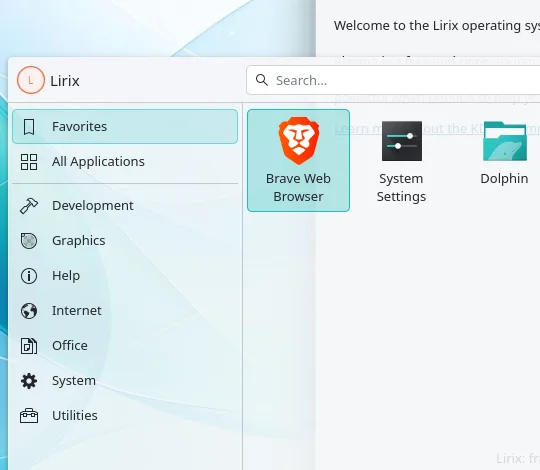
Lirix uses KDE Plasma 6, set up to feel like Windows:
- One panel along the bottom: start menu on the left, taskbar in the middle, system tray and clock on the right.
- The start menu button is the Lirix lily.
- Double-click to open files and folders.
- Minimize, maximize and close buttons on the right of every window.
- A Welcome window on first start, and an "Install Lirix" icon on the desktop when you run it from USB.
Themes and wallpapers
Three Lirix themes come built in. Change them in System Settings → Colors & Themes → Global Theme. Quick Settings offers Lirix Light and Lirix Dark for fast switching. Each theme has its own matching wallpaper.
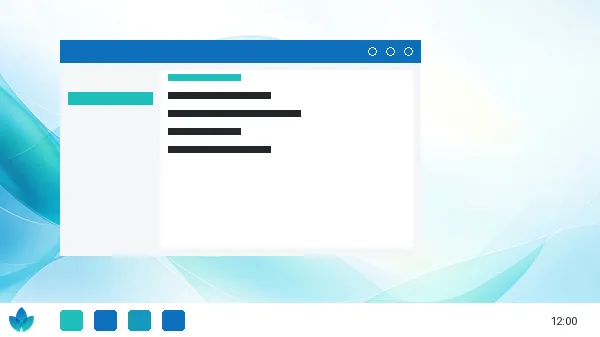
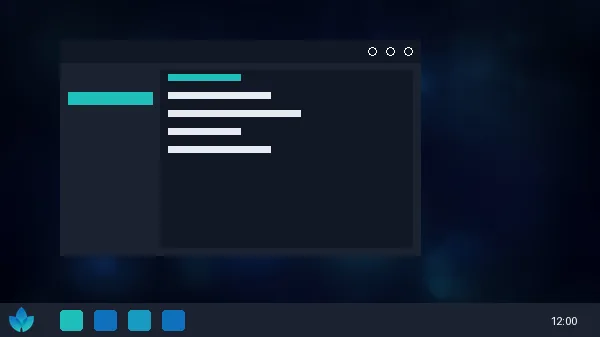
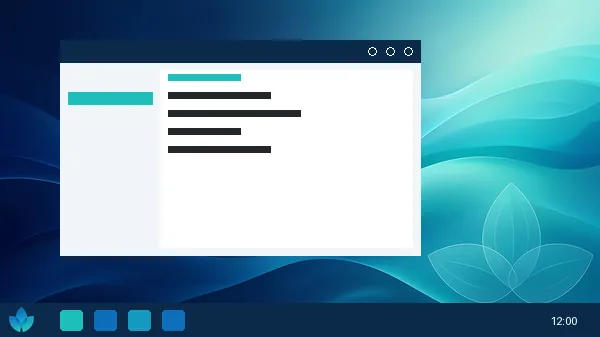
Four Lirix wallpapers
Each comes in 1920×1080, 2560×1440 and 4K sizes. Right-click the desktop and choose Configure Desktop and Wallpaper to switch. You can also download the 4K versions here.




Apps included
Web browsers
Brave is the default browser, pinned to the taskbar. Its ad and tracker blocking (Shields) stays on, while Rewards, Wallet, VPN, the Leo AI assistant and usage reports are switched off.
Mullvad Browser is in the start menu as an extra-private alternative.
Both come from their makers' official sources and update with the rest of the system.
Everyday tools
- Dolphin: file manager
- Okular: PDF and document viewer
- Gwenview: image viewer
- Kate: text editor
- Spectacle: screenshots
- Ark: zip and other archives
- Discover: software store
For tinkerers
- Konsole terminal and the nano editor
- git, build-essential (gcc, make), curl and wget
fastfetchshows system info with the Lirix logosudo lirix-devtools: a checklist menu to add the optional software below at any time
Privacy
No telemetry by default
Lirix switches off the data collection it knows about before you even start:
- Debian's "popularity contest" survey is removed.
- KDE's automatic crash-report uploads are turned off.
- Firmware update checks don't send automatic reports or refresh on their own.
- The automatic "is the internet working?" check that contacts a Debian server is removed.
- Lirix finds printers on your network, but doesn't announce itself or share printers.
- Brave's usage reports and extra services are off (see above).
- Telemetry opt-outs are pre-set for common developer tools (.NET, PowerShell, Azure CLI, GitHub CLI and HashiCorp tools).
Telemetry notice when installing apps New
Some popular apps send data to their makers. When you install one of them (with Discover or apt), Lirix shows a short notice: what the app collects, whether it can be turned off, whether Lirix already did that for you, and how to do it yourself.
The list covers more than 30 well-known apps, such as Visual Studio Code, Google Chrome, Steam, Zoom, Discord, Spotify and Slack. You can look any of them up yourself in a terminal:
lirix-telemetry code          # look up one app
lirix-telemetry --installed   # check everything on this computer
lirix-telemetry --list        # show the whole list
The list is checked by hand against each app's official documentation. Lirix can't scan an app to find out what it sends, so an app that isn't on the list may still collect data.
Optional software at install
The desktop installer has an Optional Software page. Nothing is ticked, so you only get what you choose. These are downloaded during installation, so you need an internet connection. You can add them later with sudo lirix-devtools.
| Option | What you get |
|---|---|
| VSCodium | Code editor: VS Code without Microsoft's telemetry, from the official VSCodium source. |
| Sublime Text | Fast code editor from Sublime HQ's official source. Paid software: free to evaluate with no time limit, with an occasional reminder to buy a license. Lirix turns off its automatic crash-report uploads. |
| Programming languages | Python 3 (pip, venv), Node.js + npm, Go, Rust + Cargo, Java (JDK). |
| Containers | Podman and podman-compose. Docker is a separate tick box. |
| Virtualization & network | virt-manager, QEMU, libvirt, Wireshark, nmap, traceroute, dig/nslookup. |
| Terminal extras | tmux, htop, btop, fastfetch. |
| .NET development | .NET 10 SDK (C#, F#, ASP.NET Core) from Microsoft's official Debian 13 source, with .NET's telemetry switched off. |
| ArtCraft Launcher | Installs and updates the Craft creative apps (such as PhotoCraft, FilmCraft, VectorCraft and WordCraft). Official download, checked before installing. The maker calls these apps early alpha. |
| Everyday apps | Pick any: LibreOffice (Writer, Calc, Impress, Draw; opens Word, Excel and PowerPoint files, with matching fonts), FileZilla, digiKam, GParted, K3b, Celluloid, VLC. |
| SSH server | Lets you log in to this computer from another one with ssh. Off unless you tick it. |
Printing and scanning
- A Printers page in System Settings to add and manage printers.
- Modern network and USB printers that need no driver (IPP Everywhere / AirPrint) just work.
- Drivers for HP, Epson and many other brands are included.
- Network printers are found automatically. Lirix doesn't announce itself on your network.
- Scanning for all-in-one printers, with the Skanlite scanning app.
Dual boot with Windows
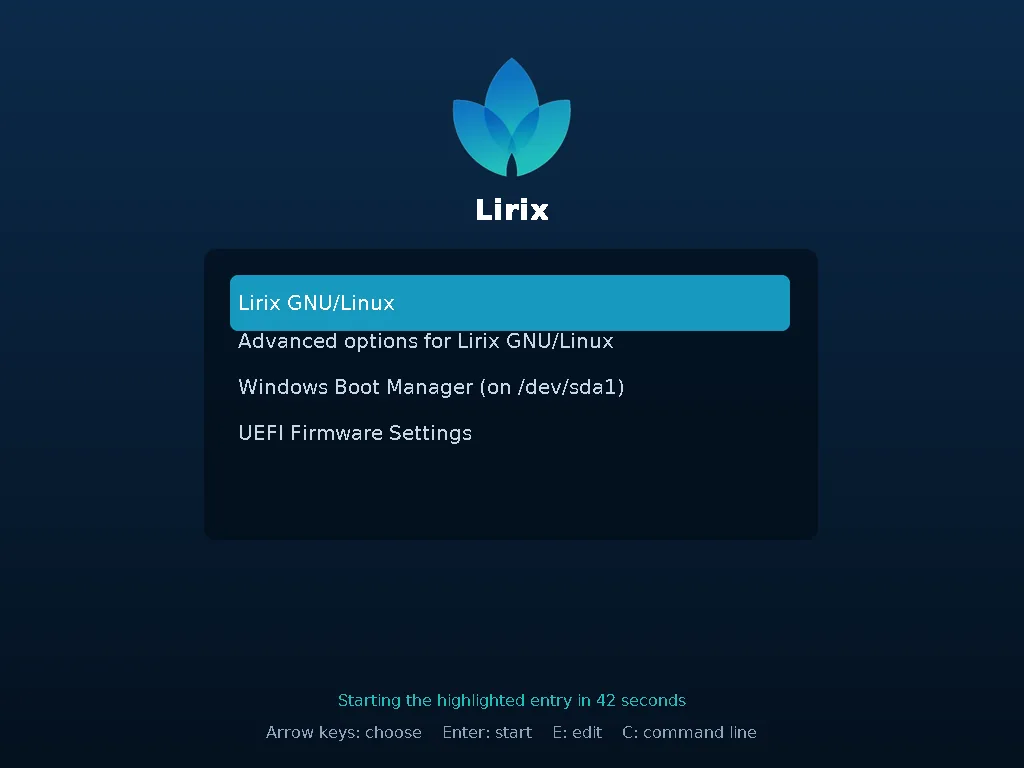
Install Lirix next to Windows with the installer's Install alongside option. Lirix reuses Windows' boot partition, leaves Windows' own boot files alone, and adds Windows to the Lirix boot menu. Secure Boot can stay on.
Lirix Server
The same USB stick can install Lirix Server: no desktop, just a lean system for running services at home or in a homelab.
- Text-mode installer with the Lirix look.
- SSH server always installed and switched on, so you can connect right away.
- Standard system tools, plus git, build-essential, curl, wget and fastfetch.
- The basics install from the USB stick itself. An internet connection is recommended.
sudo lirix-devtoolsadds languages, containers and more later.